Case Study
Apple's iPhone Timer Analysis
This is a group research project I worked on for my master's in Human Computer Interaction and Design at the University of Washington, for the UIST course.
- My Role
- Researcher on a team of three
- Timeline
- February 2024
Explanation
What problem does it solve, and for whom?
The timers feature in the Clock app on iPhone is designed to allow users to set countdown timers that will alert them when a certain amount of time has elapsed. The timers feature is aimed at all iPhone users, but especially those who need to keep track of durations for activities, events, or productivity. The customizable alerts allow them to time and manage all kinds of tasks and routines. This can be useful for timing activities like cooking, workouts, or anything else where the user wants to be notified after a certain duration (Apple, 2024).
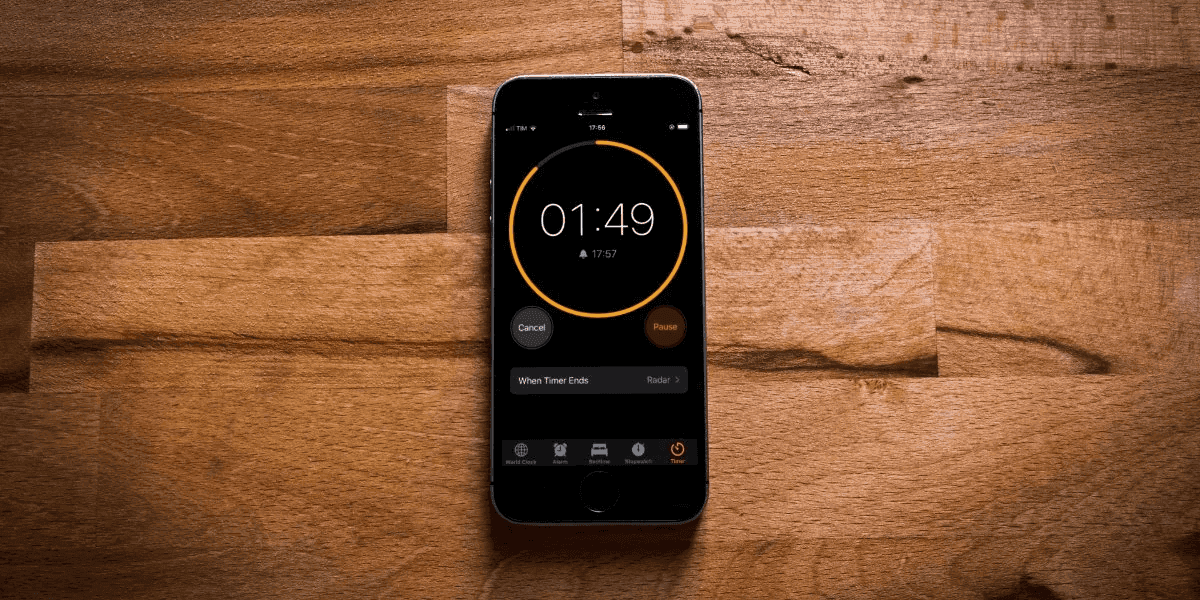
 The built-in Clock app on your iPhone lets you set timers so that you can stay on top of your tasks. (Image source: Makeuseof)
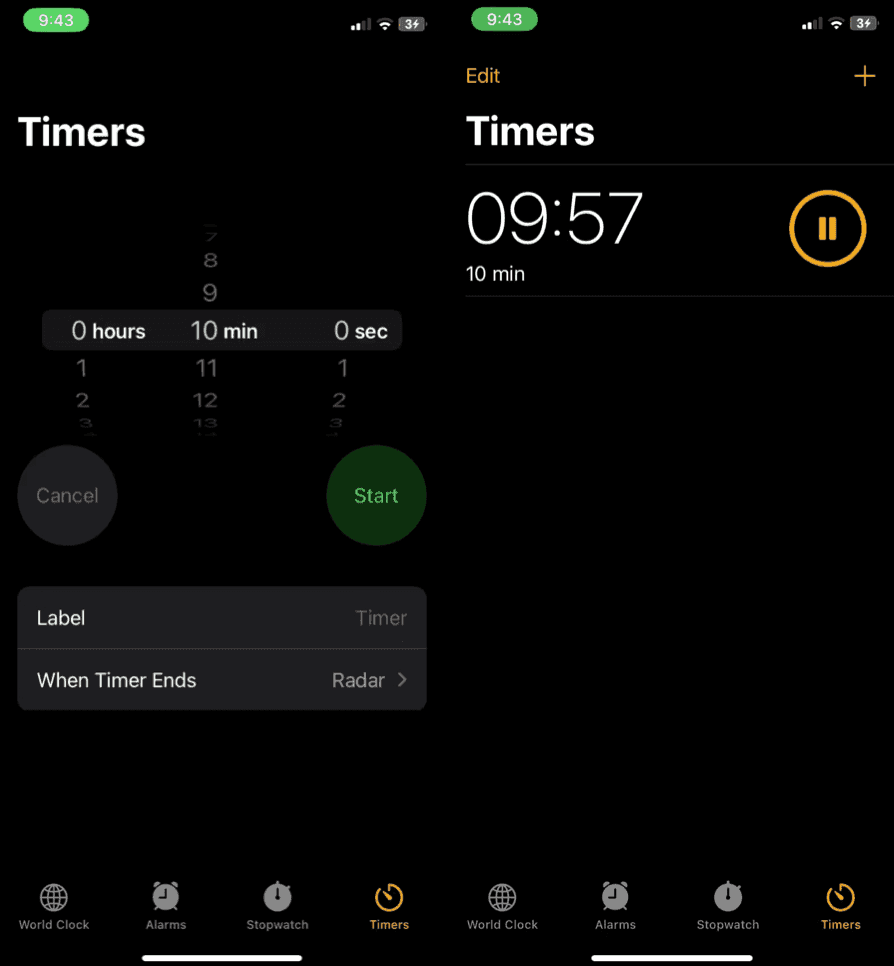
 Timer setting and countdown screens on iPhone.
The input the system receives is the user tapping the "Timer" tab within the Clock app, and then configuring the desired timer duration via the number pad and unit selector. The user can set hours, minutes, and seconds. Once the user starts the timer, the system initializes a countdown timer object, passing it to the specified duration. This timer object contains the logic to count down the duration second-by-second and trigger notifications when certain thresholds are reached, like when 1 minute remains.
Behind the scenes, the system maintains the timer in memory, continuously decrementing the remaining time until it reaches zero. At preset intervals, it checks if new notifications need to be triggered based on the thresholds configured within the timer object. When the remaining time reaches zero, the timer object signals the system to play an alarm sound and displays a notification that the timer has finished. The notification remains visible until dismissed by the user (Apple, 2024).
The timer object handles pausing, resuming, and resetting the timer based on additional user input. It adjusts the remaining time accordingly. Throughout the process, the system is responsible for persisting the timer state, so that it continues counting down even if the device goes to sleep. The timer data is saved so that it can be restored if the user reopens the Clock app (Fiaz, H., 2023).
In summary, the timers feature leverages a system for countdown timers and notifications to provide a customizable alert that fires after a specific duration, solving the problem of alerting users based on timed events. The system handles the underlying timer logic, persistence, and triggering of notifications.
How the Interface Works
When setting a timer on the iPhone, it can be set in two different ways. First is through Siri and the second is through manually setting the timer in the Clock app, which we will focus on. There are a few key steps when setting this timer. First, is navigating to the Timer section of the clock app. Setting a timer can be done by using the carousel of numbers representing the hours, minutes, and seconds. The user can also choose to give the timer a label and specific sound when the time runs out. Once the user is satisfied with the alarm, the user will press the start button (Use Multiple Timers in Clock on iPhone, 2024). After the time has passed, and the alarm is triggered, the user has the option to stop or repeat the timer.
In addition to the user interface, the timer has a few notable programming principles as well. Some essential aspects of the timer's program are run loops, tolerance of fire, and invalidations. Run loops are used to give users the option to repeat a specific timer. Tolerance of fire is something that would catch most people by surprise. Sometimes alarms go off at 0 seconds, but some alarms might have a little hesitation before going off. Therefore, the developer must create a tolerance of when they want the alarm to fire, or make a sound. Lastly, invalidate is used to invalidate the rest of the code, basically stopping the timer altogether. If the user wants to stop the timer, whether it has gone off or not, then they have the option to do so (Timer, 2024).
Core Strengths of the Interface
The iPhone's timer interface is remarkably adept at guiding users without the need for explicit instructions. This strength is evident through subtle affordances seamlessly integrated throughout the user experience, aiding users in recognizing the core functionality and distinguishing static from editable content.
Cassie's User Flow: Consider Cassie, who needs precise timing while boiling an egg. Navigating the timer interface, she sets the time and initiates the countdown with a simple tap. As the screen transforms into a countdown display, Cassie taps it again to reveal a larger timer with a progress ring. Naming her timer "Perfect Egg," she is promptly alerted when the timer concludes, accompanied by the "Illuminate" ringtone. The timer is conveniently stored in the recent timers section.
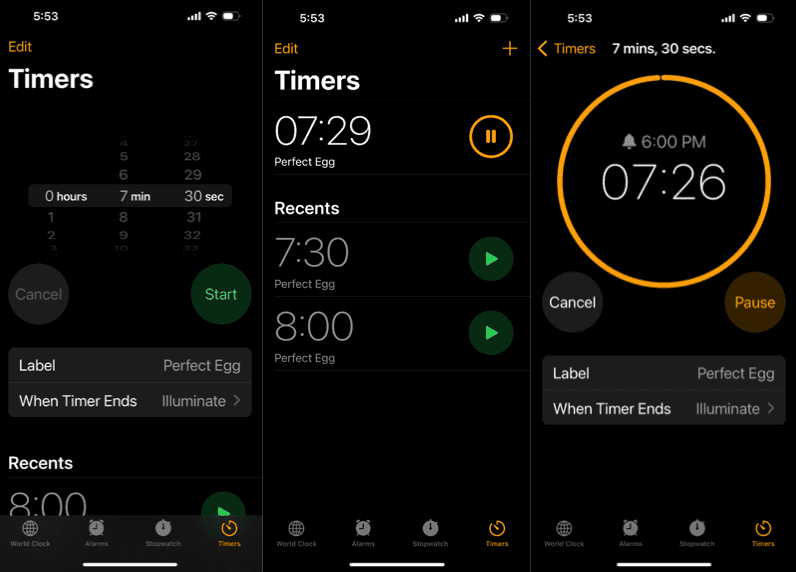 Cassie's user flow for timing a perfectly boiled egg. (Image source: Judy's iPhone screenshots)
The usability of the iPhone timer feature is apparent as users like Cassie seamlessly navigate its functionality, driven by design cues rather than explicit instructions.
Apple employs strategic affordances, notably skeuomorphism, aligning interface elements with real-life objects (Interaction Design Foundation, 2016). When Cassie sets her timer, the interface is neatly organized into the standard time unit of hours, minutes, and seconds. The dial-like scrolling mechanism mimics a real-life combination lock, with consecutive numbers gradually fading off screen with a gentle curvature. The scrolling mechanism, responsive to physics and enhanced by haptic feedback, further mimics the familiar experience of using a combination lock. This provides an intuitive interaction, enabling users like Cassie to effortlessly engage with the feature.
The interface's use of opaqueness and translucency serves to distinguish between static and editable content. Time unit names, such as hours and minutes, maintain a bold and stable appearance, while translucent numbers signal their editability. This consistent visual pattern enhances user comprehension across the UI.
Identifying main controls, such as the start button, is intuitive and user-friendly. The start button, in a translucent green circle, stands out prominently. The cancel button, initially grayed out in a translucent circle, effectively communicates its non-tapability, signaling activation at a later point.
Cassie's interaction with the countdown unveils a translucent card featuring a larger progress bar view. The translucent field labeled "label" emphasizes its changeability. The timer interface excels in visually reinforcing categories, aligning seamlessly with usability heuristic norms. This ensures clear visibility of the system status, allowing users to understand the outcomes of their actions without explicit guidance (Nielsen, 1994).
Throughout the user experience, the timer, the primary functionality, consistently maintains a prominent position at the uppermost part of the screen. This, coupled with the intuitive affordances, contributes to a simplistic yet usable experience.
Assumptions
User Knowledge and Understanding
These assumptions relate to the user's cognitive abilities and familiarity with certain concepts and terms.
- Assumes the user knows the "min" and "sec" abbreviations.
- Assumes the user knows that they can label the alarm.
- Assumes the user understands the concept of a countdown timer.
- Assumes everyone measures time the same (hours, minutes, seconds).
User Preferences and Intentions
These assumptions reflect user expectations regarding alarm sounds and timer behavior.
- Assumes the user wants to hear the default alarm sound.
- Assumes the user wants the timer to count down at the regular speed.
Device and System-Related
This category is grouped based on their relevance to the device's operational aspects and system behavior.
- Assumes the user understands the timer persistence - it keeps running in the background.
- Assumes users are aware of the existence of the native clock app.
- Assumes users trust that their iPhone countdown will sound despite being in silent, do not disturb, or sleep modes.
- Assumes users regularly install software updates to get the latest features.
- Assumes users have sufficient battery or access to a charging device.
- Assumes familiarity of iOS and the Apple ecosystem.
User Preferences and Financial
- Assumes users will find it convenient to use this feature over an analog countdown alternative.
- Assumes users will find the label useful for setting one or more countdowns.
- Assumes users have the financial ability to afford an iPhone to access this feature.
User Actions and Interactions
- Assumes the user knows to scroll up and down to change the time.
- Assumes the user will click "start" when they want to start their timer.
- Assumes the user doesn't make any numerical mistakes when inputting the time.
- Assumes the user is aware that they can activate the alarm through speech and in the physical app.
- Assumes the user will discover how to delete a timer.
- Assumes the user knows that they can set a timer by saying the timer's label instead of physically inputting it in the app.
- Assumes the user may need multiple simultaneous timers for different purposes.
- Assumes the user may have certain durations they commonly use for timers.
- Assumes the user may need to repeatedly start/stop a timer quickly.
- Assumes the user can navigate to the timer section correctly.
- Assumes the user is able to see the numbers and different options on the timer app.
- Assumes users have the motor ability to tap on the touchscreen for the start button.
- Assumes users have the motor ability to swipe on the time dial.
- Assumes the user can physically access iPhones to set and manage timers, excluding those with severe physical limitations.
Scenarios and Redesigns
Assumption
Assumes the user will discover how to delete a timer.
Scenario of Exclusion
Cassie is a working mother who is cooking on a weeknight. Her schedule is busy, and she is in the middle of multi-tasking to cook dinner. Cassie sets up a few timers:
- Stew timer — Timer of 20 minutes to simmer the stew
- Shallow fry timer — Shallow fry for 2 minutes before flipping
- Marinade timer — Marinade meat for 10 minutes before using
While setting up the timer, Cassie realizes that she sets one up incorrectly. Confused, she looks for a delete button but none is apparent. There is a pause button, which is not what she wanted. Tapping the pause button does not remove the timer, it just changes the timer state to pause and it continues to clutter her list of timers. When she clicks an individual timer, there is another pause button and a cancel button. Cassie is unsure what cancel means, whether it means delete (like she wants) or go back to the previous page or something else (restart the timer), especially given that the cancel button is white and not red like other destructive options in Apple's design language.
Cassie's uncertainty makes her hesitate to press it in fear that it will do something unexpected. Since she is in the middle of cooking, she doesn't have the time nor capacity to stomach that risk. She decides to simply pause the timer and create a new one instead, leaving an additional incorrect timer cluttering her list. Cassie will need to spend time afterwards to test out whether the cancel button does what she wants or not. She may also never end up figuring out that she can swipe the timer to delete it. Overall, Cassie ends up with a cluttered timer list, wasted time trying to find the delete button, and additional stress, all because of the assumption that she will be able to discover how to delete timers.
Alternative Design
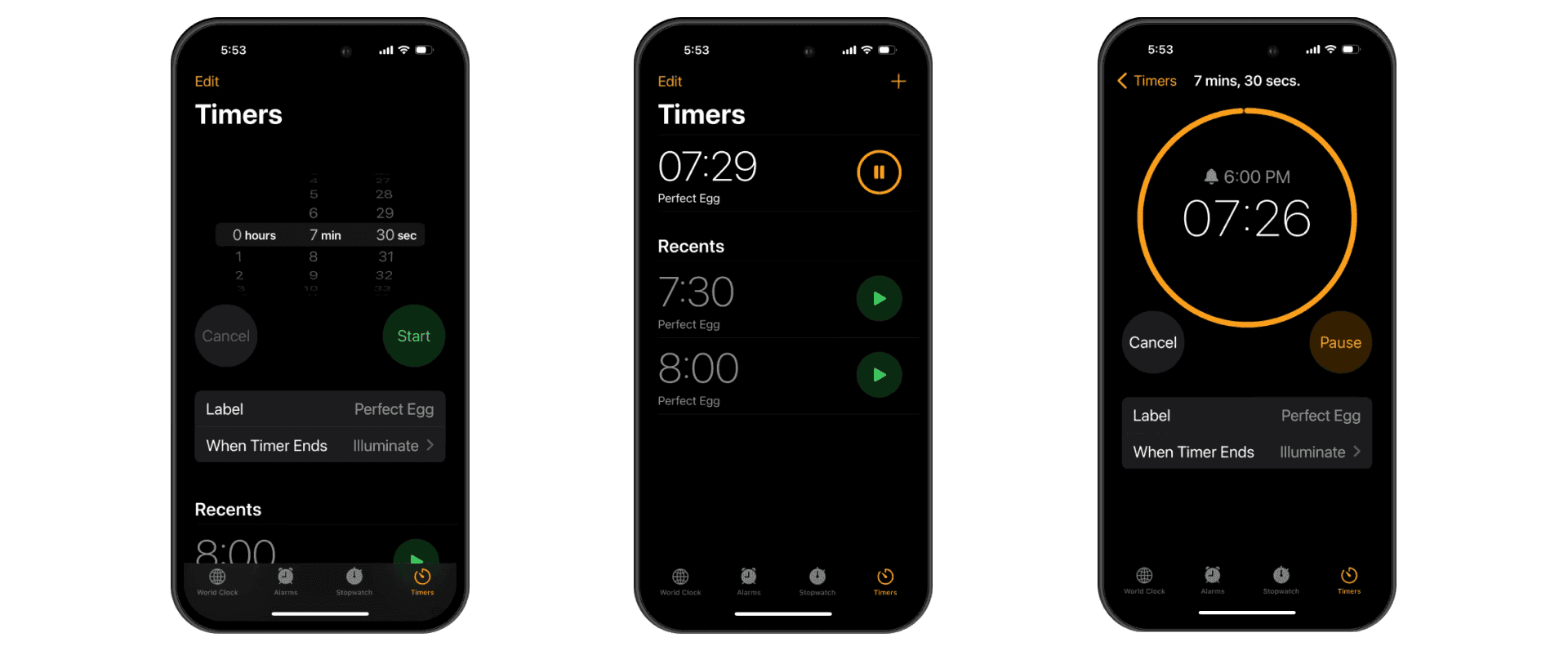 Current iPhone timer design.
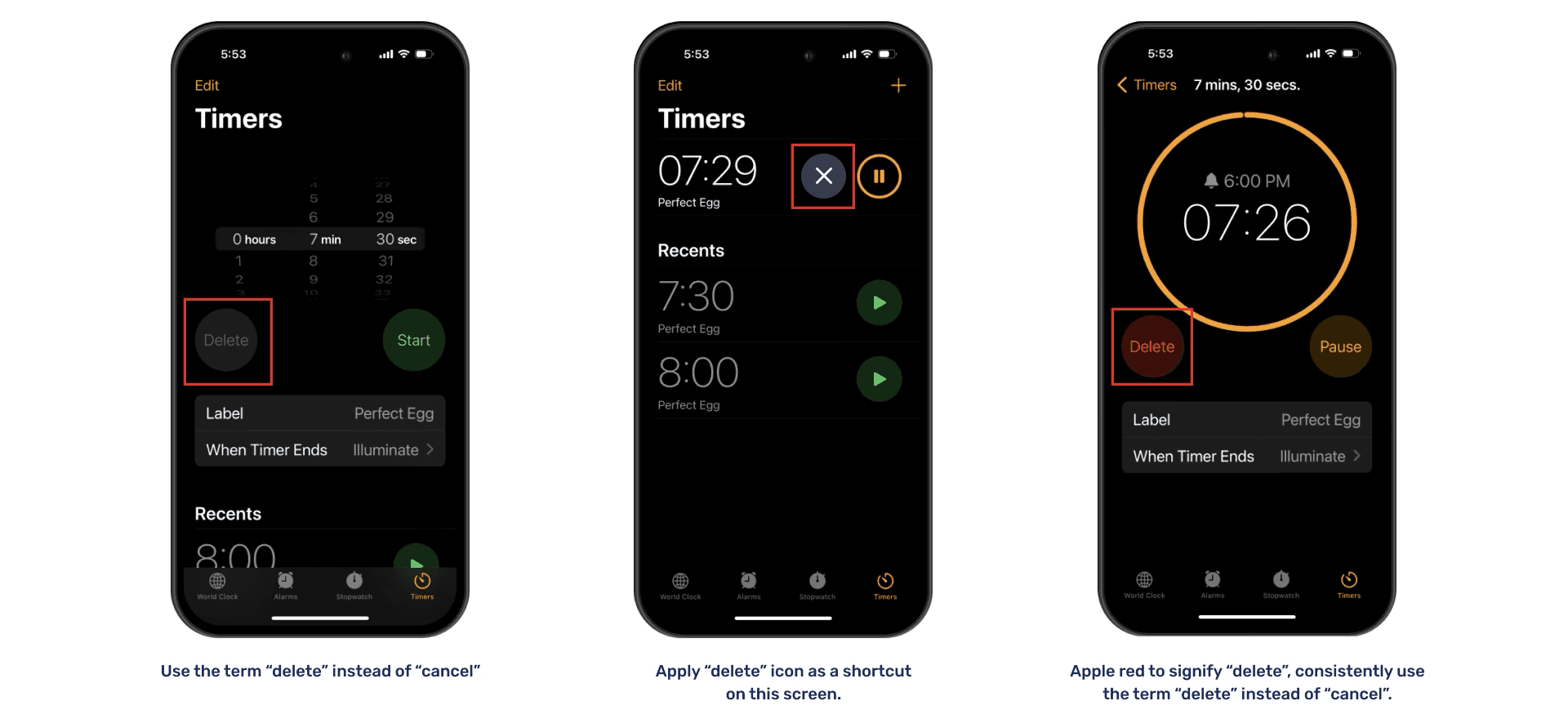 Proposed iPhone timer design.
-
On the initial screen for timers, the "cancel" option is grayed out and inactive. Here, "cancel" actually performs a "delete" function. The new design proposes using consistent terminology — changing "cancel" to say "delete". This avoids the assumption by making the functionality of the button explicit.
-
On the second screen, after a timer has been set, the delete option is not visible in the list view. Cassie would need to be quite familiar with Apple's design language to recall that the swipe gesture can be used to access additional options in a list view. The new design proposes that there can be a button to perform the "delete" on this view. Each active timer will have an "X" button which will communicate to the user that the timer can be deleted. This avoids the assumption by increasing the discoverability of the "delete" functionality. Apple uses this UI already for timers, but only on the lock screen.
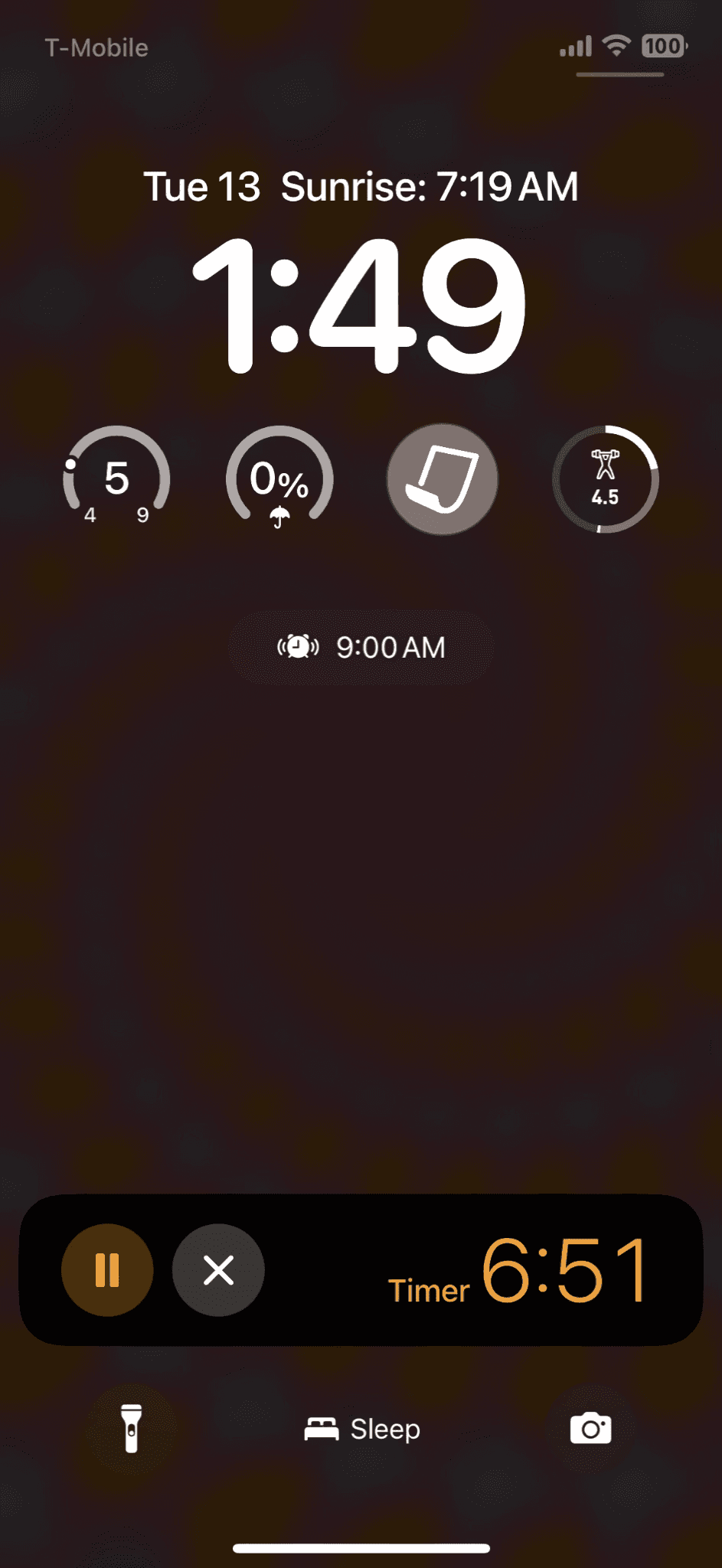 Timer on lock screen on iOS 17.
- On the last screen, with the expanded timer and a progress ring, the terminology for "pause" and "cancel" seem too related. Cassie was confused by this language, as it is unclear if this terminology means "delete" or "go back" to the previous page or something else like "restart" the timer. Also, if Cassie ever discovers the swipe to delete functionality, that "delete" button is red to indicate that it's destructive. This may prevent Cassie from associating the "cancel" button with being the same functionality. The new design proposes to change the "cancel" language to say "delete" for consistency. Also, the button will be changed to red to indicate an active button with a destructive functionality instead of the current gray button. This also avoids the assumption that the user can discover the delete functionality by making the functionality of the button explicit through text and color.
New Assumptions
The alternative design for the timer makes the following new assumptions:
- Assumes the user can see colors
- Assumes the user will associate red with delete
- Assumes the user won't feel overly-hesitant pressing a "delete" or "X" button
- Assumes the user will want a noticeable delete on the main page
- Assumes the user won't find the multiple delete buttons distracting